Getting Started
Everything you need to create your Guild profile and see your dashboard for the first time. You only need an email address to start.
Everything you need to create your Guild profile and see your dashboard for the first time. You only need an email address to start.
1. Sign up
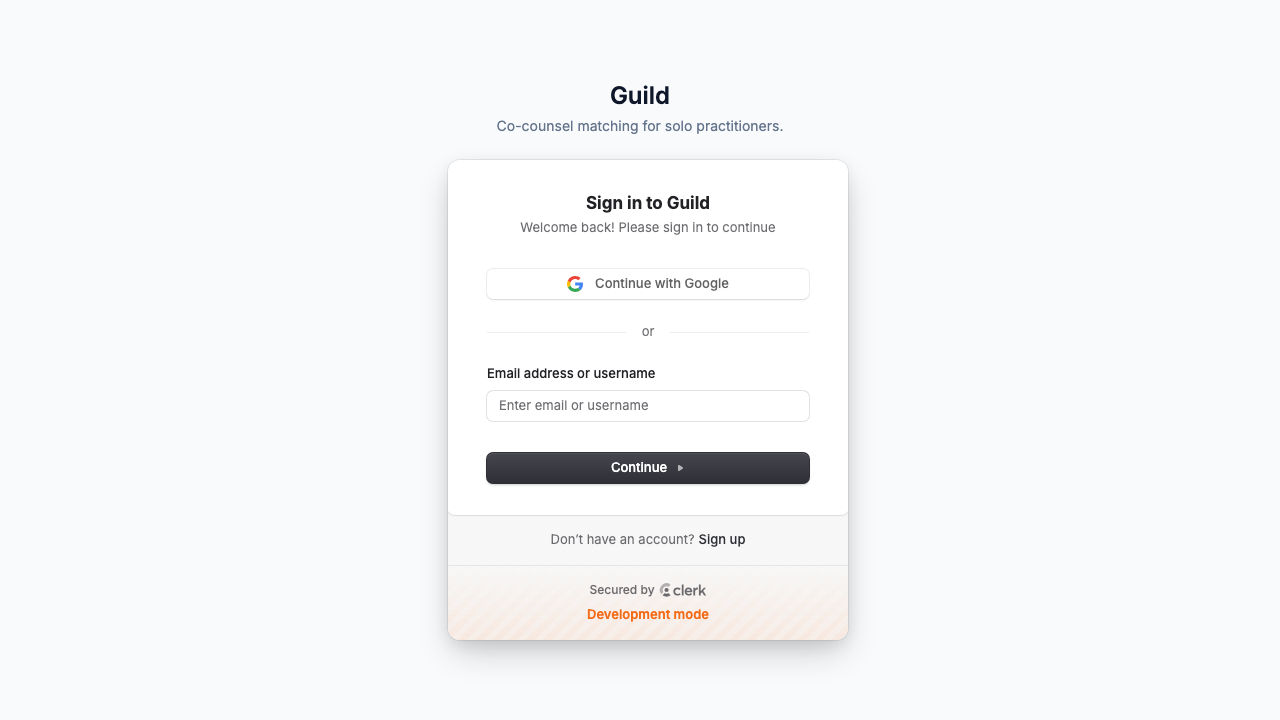
- Go to the Guild sign-in page (login screenshot).
- Enter your email address. Guild uses magic-link / email-code sign-in — there are no passwords to create or remember.
- Click the link (or enter the code) in the email you receive. You're in.
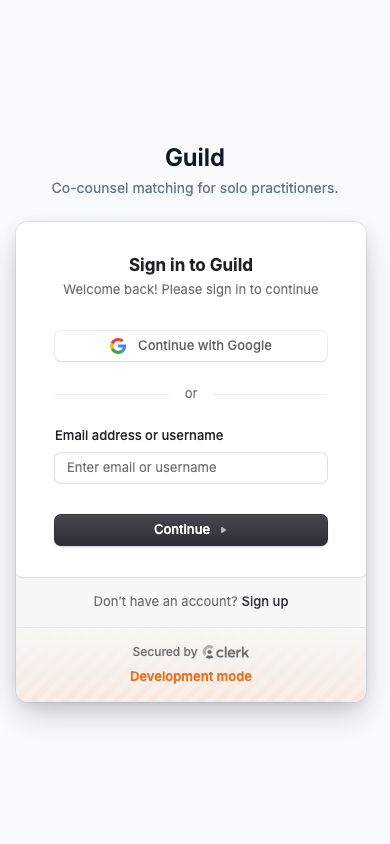
If you're on a phone, the same flow works in a mobile browser (mobile screenshot).
You'll be asked to complete your profile before you can do anything else. That's a one-time step — see below.
2. Complete your profile
On your first visit you'll land on the onboarding form. It collects everything the matching system needs to find you good cases:
- Name — as it should appear to other practitioners.
- Bar admissions — state and bar number for each jurisdiction you're admitted in.
- Practice areas — pick from the reference list (45 areas). Choose accurately: matching is by exact practice area.
- Jurisdictions — pick from the reference list (66 jurisdictions). Same rule: exact matches only.
- Years of experience and a short bio.
Submit once and you'll land on your dashboard. Your profile is now live and searchable.
Profile visibility
You control how visible you are (Settings → Profile, or /profile):
| Setting | What it means |
|---|---|
| Active | Your profile appears in co-counsel searches and you can receive matches and referrals |
| Paused | You keep your profile and data, but you're not shown in searches |
| Hidden | Same as paused — your profile is not shown to anyone (your own view still works) |
There's also an "Accepts referrals" toggle — keep it on if you want to be referred cases as well as matched.
3. Your dashboard
The dashboard is your home base (dashboard screenshot):
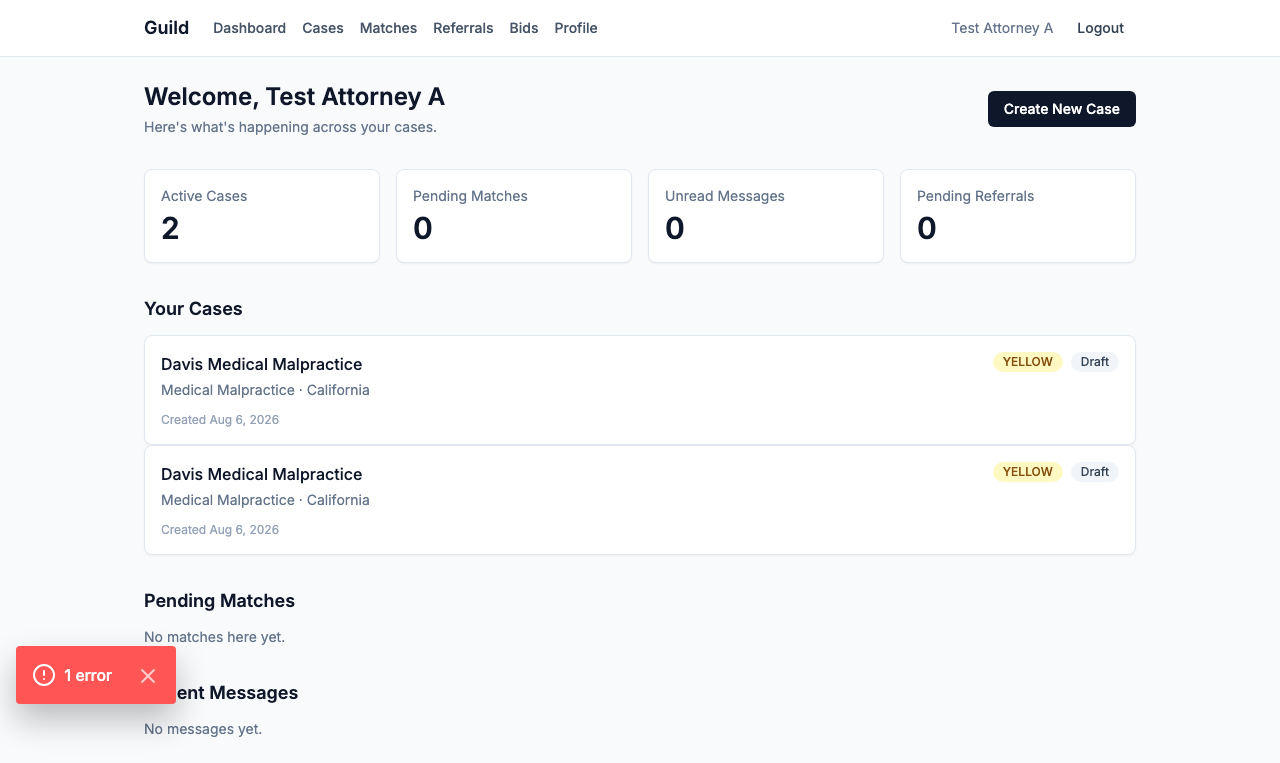
- Stats bar — counts of your active cases, pending matches, and unread messages.
- Your Cases — your five most recent cases, with status.
- Pending Matches — incoming match proposals waiting on your decision.
- Recent Messages — your latest messages, with unread messages called out.
- Create New Case — the button that starts the wizard (see Creating a Case).
From here the navigation bar takes you to Cases, Matches, Referrals, Bids, Profile, and Settings.
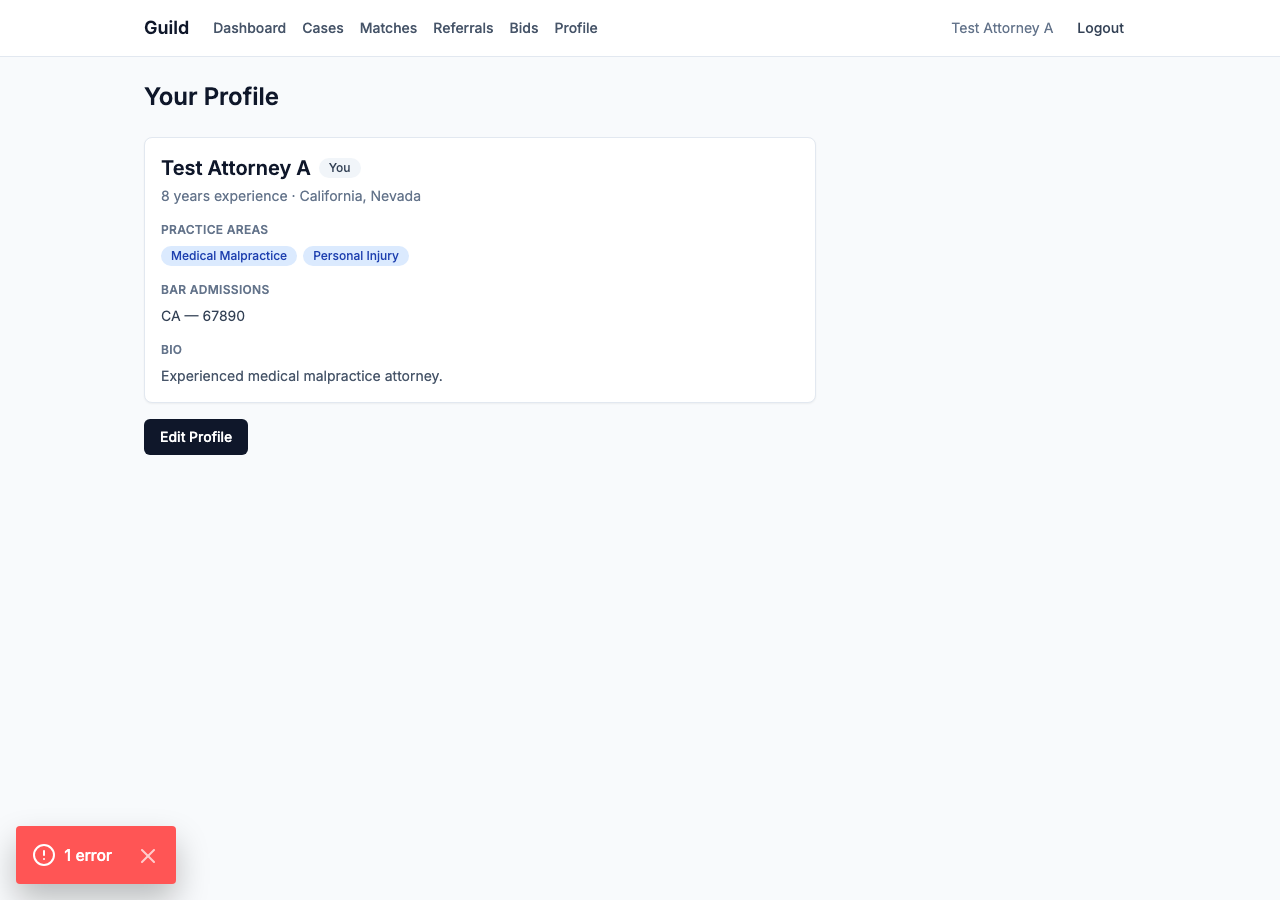
Your profile page shows how other practitioners see you (profile screenshot), including your practice areas, jurisdictions, and bio.
4. You're ready
The natural next step is to post your first case — read Creating a Case. Or if you'd rather understand how the matching works before you post anything, start with How Matching Works.
Have a question? Check the FAQ.